👥𝐀𝐝𝐝 𝐧𝐞𝐰 𝐔𝐬𝐞𝐫𝐬 𝐢𝐧 𝐃365 𝐁𝐮𝐬𝐢𝐧𝐞𝐬𝐬 𝐂𝐞𝐧𝐭𝐫𝐚𝐥

Jan 9
2 min read
In this post you are going to get an idea about how to add new users in D365 Business Central step by step. Below is the full end-to-end process, which you can use for new user creation:
I’ll structure it in 4 layers:
Create user in Microsoft 365 Admin Center
Assign Business Central license
Create & configure user in Business Central
Assign relative permission for user in Business Central
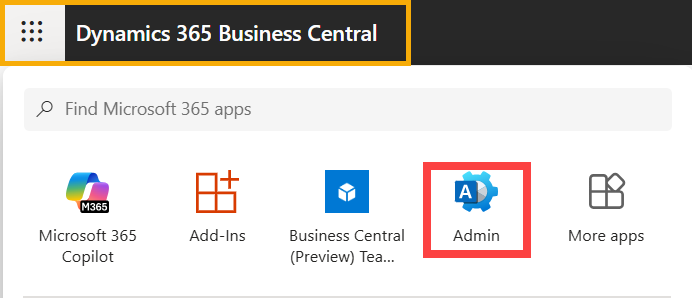
Step 1 — Login to Admin Center
Go to https://admin.microsoft.com
You can only login with Global Admin / User Admin
Step 2 — Create New User
Go to Users → Active users

Click Add a user

Fill:
Field | Value |
First name | Agrimaa |
Last name | Shukla |
Username | Agrimaa |
Domain |
Click Next

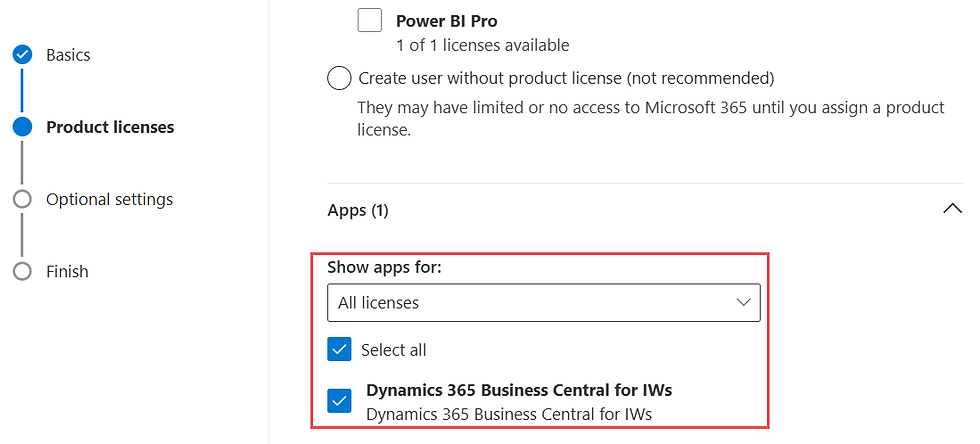
Step 3 — Assign License
Select Location
Enable Dynamics 365 Business Central license
(Optional) Enable Office apps if needed
Click Next

Step 4 — Set Role & Finish
Assign Admin role if required (normally None)


Add Profile details of that user


Click Finish
User is now created in Azure AD, and now you can share details with end user for login.


Create User in Business Central
Step 1 — Open Business Central
Go to https://businesscentral.dynamics.com
Login as BC Admin or with SUPER permission
Step 2 — Open Users Page
Search 🔍 → Users
Click on Update Users from Microsoft 365


Step 3 — Assign Permissions
Add permissions set for newly added users

🔹 Common Issues
Issue | Cause | Solution |
User not visible in BC | License not assigned | Assign BC license |
Login fails | User disabled | Enable user |
No access | No permissions | Add permission sets |
Wrong homepage | No profile | Set role center |
🟢 Best Practices
Always create users in Admin Center first
Never give SUPER by default
Use Security Groups for large organization
Document role-to-permission mapping


Comments